Proximity Reveal
Map the distance between cursor and element to blur, scale, and opacity, turning a binary hover into a continuous, spatial interaction.
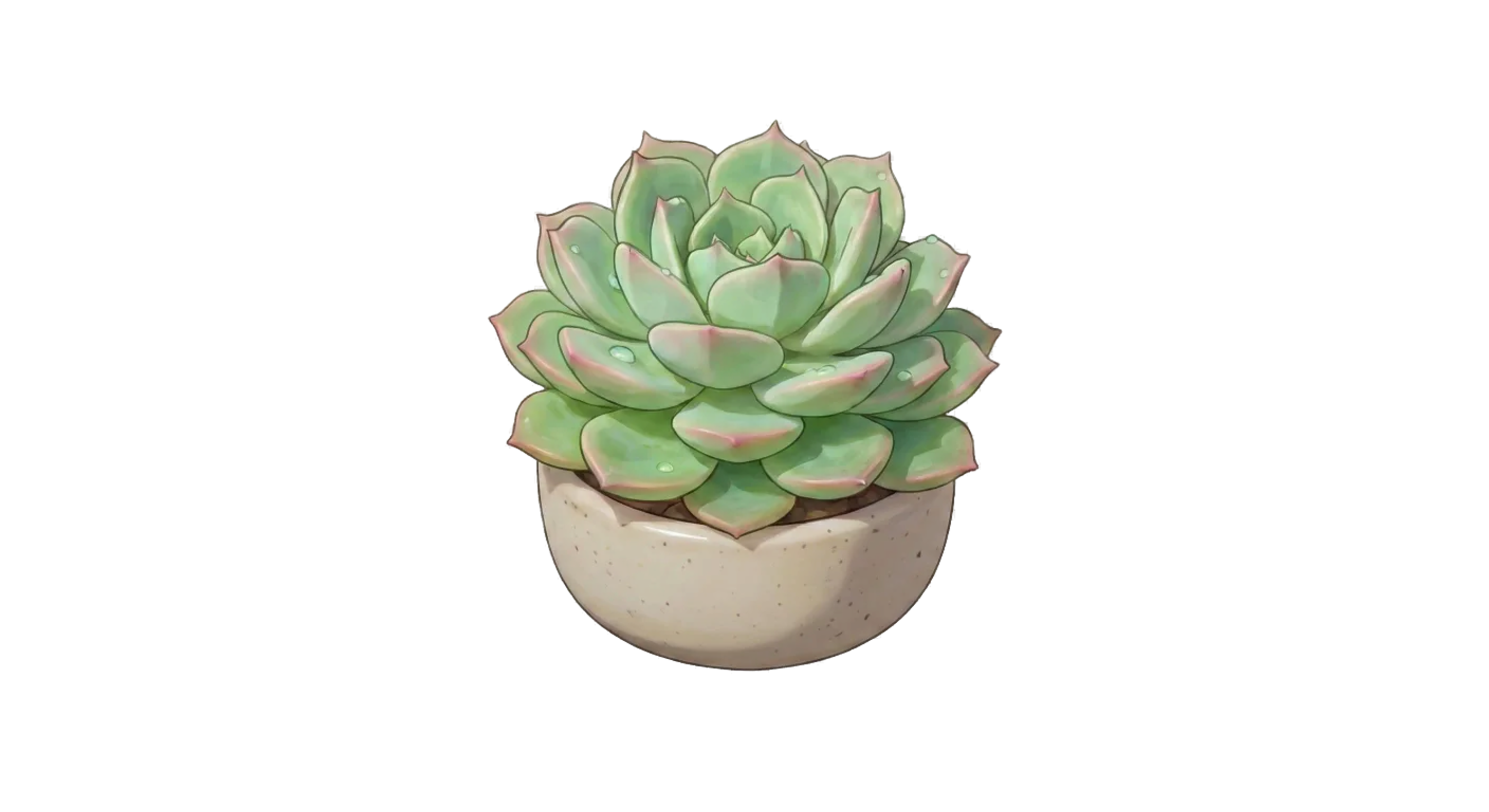
Hover over the image above. Not quickly. Slowly. Notice how the blur doesn't snap off like a switch. It lifts, gradually, the closer you get. Move your cursor away, and it settles back. There's no "hovered" or "not hovered" here. Just a continuous gradient of proximity that your eye reads as depth.
This kind of spatial interaction shows up everywhere in polished interfaces: cards that tilt toward your cursor, backgrounds that shift in parallax, elements that glow as you approach. They all share the same DNA. Every one of them is answering a single question: how far is the pointer from this thing?
Once you can answer that question, you can map the result to any CSS property: blur, scale, opacity, hue, rotation. The image above uses blur and a vertical offset.
Let's build it up from nothing.
Relative Position
The browser gives us cursor coordinates through clientX and clientY, but those are relative to the viewport. If we want to know how far the cursor is from a specific element, we need that element's position too. That's what getBoundingClientRect() is for: it returns the element's size and position relative to the viewport, giving us a shared coordinate system.
const bb = wrapper.getBoundingClientRect();
const centerPoint = {
  x: bb.left + bb.width / 2,
  y: bb.top + bb.height / 2,
};
Now we have two points in the same space: the cursor, and the center of our element. The question becomes purely geometric: what's the gap between them?
The Triangle You Forgot You Knew
The horizontal gap between two points is just cursor.x - center.x. The vertical gap is cursor.y - center.y. And the actual distance (the straight line between them) is the hypotenuse of the right triangle those two legs form.
Pythagorean theorem. Possibly the most useful thing you retained from high school:
function getDistanceBetweenPoints(p1, p2) {
  const deltaX = p1.x - p2.x;
  const deltaY = p1.y - p2.y;

  return Math.sqrt(deltaX ** 2 + deltaY ** 2);
}
This is easier to see than to read. Move your cursor into the playground below and watch the triangle form in real time. The dashed lines are Δx and Δy, the two legs. The solid line is the hypotenuse: the distance value we actually care about.
The Distance Triangle
Move your cursor to see the right triangle formed between two points—and the Pythagorean theorem in action.
const deltaX = cursor.x - center.x;
const deltaY = cursor.y - center.y;

const distance = Math.sqrt(deltaX ** 2 + deltaY ** 2);
Every pixel of movement redraws the triangle. The number on the hypotenuse is the raw pixel distance, the single value that drives the blur effect at the top of this page. When you're close, the distance is small, so the blur is low and the scale is high. When you're far, the distance is large, so the blur cranks up and the element shrinks back.
But raw pixel values aren't directly useful. A distance of 247px doesn't map cleanly to a blur of 0 or a scale of 1. We need to normalize it.
From Pixels to a Usable Range
Normalization means taking a value from one range and mapping it to another. In our case, we want to take a pixel distance (say, 0 to 500px) and squash it into 0 to 1, where 0 means "right on top of the element" and 1 means "far enough away that the effect is fully applied."
The math is straightforward: subtract the minimum, divide by the range. But we also need to clamp the result so it doesn't exceed our bounds: a cursor 800px away shouldn't produce a value of 1.6.
export const clamp = (value, min = 0, max = 1) => {
  if (min > max) {
    [min, max] = [max, min];
  }

  return Math.max(min, Math.min(max, value));
};

export const normalize = (
  number,
  currentScaleMin,
  currentScaleMax,
  newScaleMin = 0,
  newScaleMax = 1
) => {
  const standardNormalization =
    (number - currentScaleMin) / (currentScaleMax - currentScaleMin);

  return (newScaleMax - newScaleMin) * standardNormalization + newScaleMin;
};

export const clampedNormalize = (
  value,
  currentScaleMin,
  currentScaleMax,
  newScaleMin = 0,
  newScaleMax = 1
) => {
  return clamp(
    normalize(
      value,
      currentScaleMin,
      currentScaleMax,
      newScaleMin,
      newScaleMax
    ),
    newScaleMin,
    newScaleMax
  );
};
clampedNormalize is the workhorse. Feed it a raw pixel distance, your min and max thresholds, and the output range you want. It handles both the mapping and the boundary clamping in one call. In practice it looks something like this:
const proximity = clampedNormalize(distance, 0, 500, 0, 1);
const blurValue = proximity * 20; // 0px when close, 20px when far
const scaleValue = 1 - proximity * 0.1; // 1.0 when close, 0.9 when far
That's the entire pipeline: measure the bounding rect, compute the distance, normalize it, and map the result to a CSS property. Three functions and some arithmetic.
Making It Performant
There's one problem. getBoundingClientRect() triggers a layout read: the browser has to stop and calculate the element's exact geometry before returning. And we're calling it on every single mouse move event. On a page with multiple proximity-driven elements, that's a lot of forced synchronous layout.
The fix is throttling: instead of recalculating the bounding rect on every pointermove, we limit how often the measurement actually fires. The cursor position itself updates freely; it's cheap. The expensive part is the rect lookup, so that's what we gate.
For most cursor effects, throttling to 16–32ms (roughly 30–60 measurements per second) is plenty. The human eye can't perceive the difference, and you're saving the browser from doing unnecessary geometry work on every single pixel of movement.
Collapsing It Into a Hook
Everything above (the rect measurement, the throttling, the relative coordinate math) collapses into a single reusable hook:
import * as React from "react";

import { throttle } from "lodash";

interface MousePosition {
  x: number | null;
  y: number | null;
}

export default function useRelativeMousePosition(
  ref: React.RefObject<HTMLElement | null>,
  throttleDuration = 500
): [MousePosition, DOMRect | null] {
  const [mousePosition, setMousePosition] = React.useState<MousePosition>({
    x: null,
    y: null,
  });
  const [boundingBox, setBoundingBox] = React.useState<DOMRect | null>(null);

  const getThrottledBoundingBox = React.useMemo(
    () =>
      throttle(() => {
        if (!ref.current) return null;
        return ref.current.getBoundingClientRect();
      }, throttleDuration),
    [ref, throttleDuration]
  );

  React.useEffect(() => {
    function handlePointerMove(event: PointerEvent) {
      const boundingBox = getThrottledBoundingBox();
      if (!boundingBox) return;

      setMousePosition({
        x: event.clientX - boundingBox.left - boundingBox.width / 2,
        y: event.clientY - boundingBox.top - boundingBox.height / 2,
      });
      setBoundingBox(boundingBox);
    }

    window.addEventListener("pointermove", handlePointerMove);
    return () => {
      window.removeEventListener("pointermove", handlePointerMove);
    };
  }, [ref, getThrottledBoundingBox]);

  return [mousePosition, boundingBox];
}
Pass it a ref to any element, and it returns the cursor's position relative to that element's center, already offset and throttled. The blur demo at the top of this page, the scale effect, and every other proximity interaction you see here all use this hook under the hood.
The API surface is intentionally small. You get back a coordinate and a bounding box. What you do with the distance is up to you: blur, scale, opacity, hue rotation, or anything else. The hook doesn't care. It just answers that original question: how far?
Scroll back up and hover over the image one more time. What felt like a simple blur effect is actually a small pipeline: a bounding rect, a right triangle, a square root, a normalization, and a CSS property. Five steps between your cursor and that gradual reveal.
The core ideas in this post — distance math, normalization, and throttling bounding rect reads — draw heavily from Josh Comeau's Whimsical Animations course. If this clicked for you, that course goes much deeper.